First, if you don’t already have one, register for a FreightDesk Online account (https://freightdesk.online/register). You can connect multiple online stores to FreightDesk Online, so you don’t have to create separate accounts for each one.
The pricing for FreightDesk Online is á la carte. You’ll be able to pick a separate plan for parcel (and postal) shipments, and for LTL freight shipments based on the anticipated volume for each type of shipping. Your monthly subscription rate will be comprised of these two selections. You can begin a 30-day trial of both types of shipping by selecting Trial in the corresponding dropdown fields on the registration form.
After you complete the registration process, log into FreightDesk Online. Navigate to Settings > Connections. Click the + Add Marketplace button located at the top right corner of the Connected Marketplaces section. Select the Wix product tile from the Add Marketplace modal.
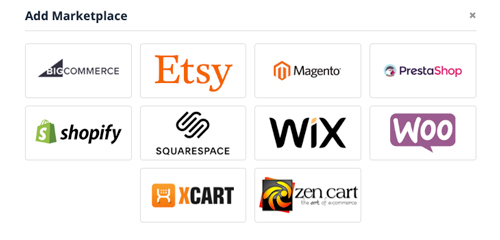
Enter the connection settings for your Wix store using the instructions below:
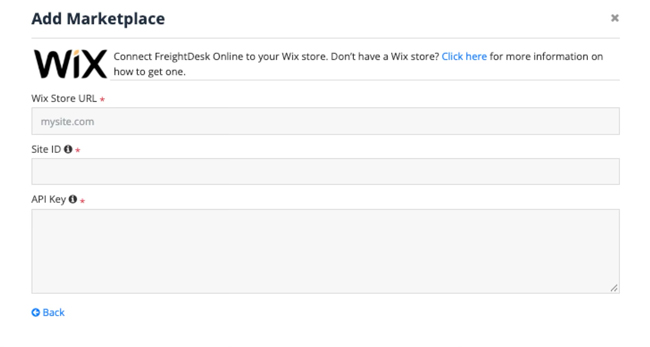
| Wix Store URL | Enter the URL for your Wix store. |
| Site ID | Enter the Site ID for your store. To locate it, navigate to the Home page using the Wix navigation menu. Locate /dashboard/. Your Site ID appears after /dashboard/ and before the next forward / is your Site ID. |
| API Key | To create an API Key, your login must have owner or co-owner permission. Use the Wix Admin menu to navigate to Settings > API Keys. Click the + Generate API Keys button.
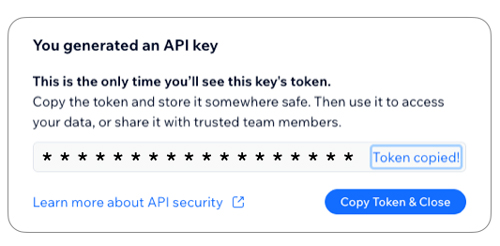
Key details – Name Enter FreightDesk Online. Sites Select Specific sites and then choose the specific store you want to connect to FreightDesk Online. Permissions Enable the box for All permissions. Click the Generate Key button. Wix may send an email for multi-factor authentication. After completing that step, you will be able to copy the token and paste it into the FreightDesk Online Wix API Key field. Do not close the API Key popup until after you have successfully copied and pasted it into your FreightDesk Online – Wix connection settings. You will not have another opportunity to copy it without generating a new API Key.
|
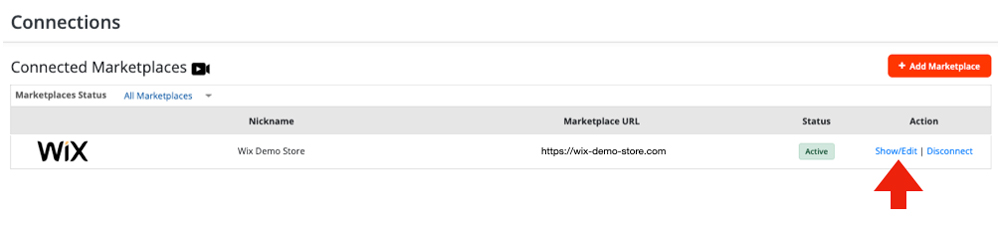
After saving the Wix credentials, locate the store in your list of connected marketplaces and click on its Show/Edit link.
Confirm the connection to Wix by clicking the Test Connection button. Afterward, choose the settings according to your preferences. The most popular settings are identified below.
| Order Import Status | Most FreightDesk Online users will select Unfulfilled. Orders that have an order status of Unfulfilled will be automatically imported into FreightDesk Online for processing. |
| Order Shipped Status | Most FreightDesk Online users will select Fulfilled. When the shipment is created in FreightDesk Online, which culminates with the printing of a shipping label for parcel, or a bill of lading for freight, the order’s status is marked as Fulfilled in Wix, and the shipment tracking information is written back to Wix. |
| Default Shipping Accounts | If you’ve already connected your parcel and LTL freight accounts, use these fields to identify which ones will be used by default. You can change the desired shipping account when preparing the shipment. This settings merely identifies which accounts will be preselected for the fulfillment process. |
| Marketplace Status | Select Active Marketplace maintain a live connection to the store. Selecting Inactive Marketplace will suspend the connection to the store. |
Now that you’ve connected FreightDesk Online, unfulfilled orders will automatically appear in FreightDesk Online. To view them, log into FreightDesk Online and click on Orders in the navigation menu. You’ll need to connect your shipping providers before you can start shipping. You can find a quick start guide in FreightDesk Online by navigating to Help > Getting Started.